You just came back from a vacation or finished a site inspection. You plug your iPhone into your Windows PC to transfer the photos, excited to see them on a big screen.
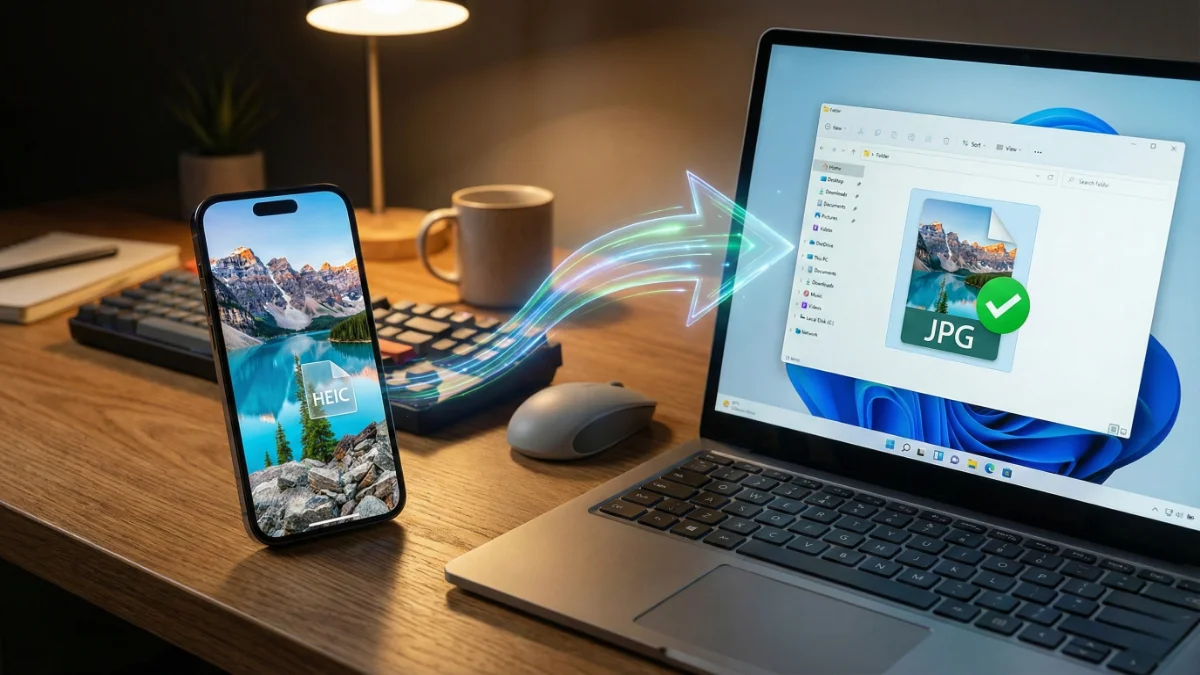
But instead of your beautiful images, you see a bunch of white icons with weird file extensions ending in .HEIC. When you try to open them, Windows says: “We can’t open this file.”
It is confusing and frustrating. As a developer, I get asked this all the time: “Why did Apple break my photos?” The good news is, your photos aren’t broken. They just need a quick translation.
What is a HEIC File?
HEIC stands for High Efficiency Image Container. Since iOS 11, Apple has used this format because it saves a lot of space. A HEIC photo is about half the size of a standard JPG but keeps the same quality.
According to Apple Support, this efficiency is great for your phone’s storage, but it is a nightmare for compatibility. Most government portals, banking websites, and older Windows computers strictly require JPG or PDF formats.
Stop Uploading Your Personal Photos!
When your HEIC file is not opening on Windows, your instinct is to search for an online converter. But wait.
Most of those free websites require you to upload your photos to their servers. Do you really want your family vacation photos, or worse, a photo of your driver’s license or credit card, sitting on a stranger’s cloud server?
At JPGtoPDFHub, we solved this using Client-Side technology. Our tools convert your files right inside your browser. Your photos never leave your device.
Solution 1: Convert iPhone Photos to JPG (For Viewing)
If you just want to view your photos on a PC or Android phone, you need a HEIC to JPG converter. Here is the safest way to do it:
- Open the Tool: Go to our secure HEIC to JPG converter.
- Select Files: Drag and drop your Apple photos. You can select multiple files at once.
- Convert Instantly: The tool will instantly change the format to a widely compatible JPG.
- Download: Save them to your PC. Now they will open in any photo viewer.
Unlock Your iPhone Photos
Don’t let compatibility issues stop you. Convert your HEIC memories to standard JPGs instantly and securely.
Convert HEIC to JPG Now →Solution 2: Convert iPhone Photo to PDF (For Documents)
Sometimes, you take a photo of a document on your iPhone and need to submit it as a PDF for a job application or assignment. An image file (JPG) might get rejected.
In this case, you can easily iPhone to JPG online free using the steps above, and then turn those JPGs into a professional document.
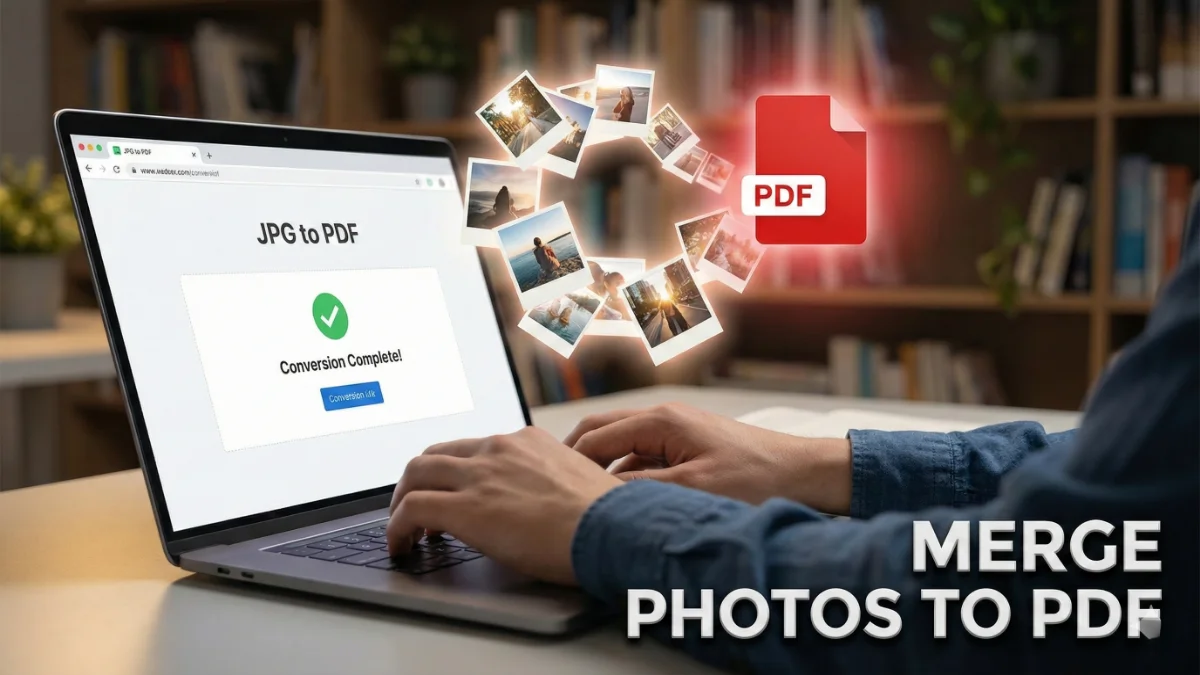
Once you have your converted JPGs, simply use our JPG to PDF tool to combine them into a single, clean PDF file ready for upload.
Cheers,
Sandeep